In short
The biggest win: disable unneeded apps in Task Manager's Startup apps tab. Then restart weekly, keep 10 to 15% of the drive free, let updates finish, and move to an SSD if your PC still has a hard drive. RAM boosters and registry cleaners don't help.
1. Turn off apps that launch with Windows
This is by far the biggest win. Every program you install tends to add itself to startup: Spotify, Discord, Teams, game launchers, printer utilities…
- Press Ctrl + Shift + Esc to open Task Manager.
- Open the Startup apps tab (on Windows 10: Startup).
- Check the Startup impact column. Right-click anything you don't need at boot, then Disable.
Don't worry: disabling removes nothing. The app stays installed and opens normally when you need it. Keep your antivirus and drivers (sound, touchpad, graphics) enabled.
2. Restart instead of shutting down, now and then
With Fast Startup, “Shut down” doesn't fully start from scratch: Windows saves part of the system to disk. It's quicker, but small glitches pile up. Restart really starts fresh. Do it at least once a week, and after every update.
3. Keep free space on your drive
An almost full drive slows everything down, startup included: Windows needs room for virtual memory and updates. Aim for at least 10 to 15% free. Our guide free up space on your C: drive shows how, step by step.
4. Let updates finish
A pending update can make every boot longer. Open Settings › Windows Update, install what's waiting and restart. Do the same for the drivers under Advanced options › Optional updates, especially graphics.
5. Check Windows and the disk
If startup suddenly got slow, some system files may be damaged. Windows has its own repair tools:
- Open Terminal (Admin) (right-click the Start button).
- Type
DISM /Online /Cleanup-Image /RestoreHealthand wait for it to finish. - Then type
sfc /scannow.
Also run a full scan in Windows Security › Virus & threat protection.
6. If your PC still has a hard drive
If your PC still runs on a spinning hard drive (HDD), it's almost certainly the bottleneck. Moving to an SSD is the most dramatic upgrade there is: boot time often drops from minutes to seconds. It's a hardware job, but an inexpensive one these days.
Fake fixes
- “RAM boosters”: flushing memory forces apps to reload everything. The PC gets slower, not faster.
- Registry cleaning: no measurable gain, and one wrongly deleted key can stop Windows from booting.
- Disabling Windows services at random from a list found online: tiny gains, real breakage.
The shortcut: Kaury Clean
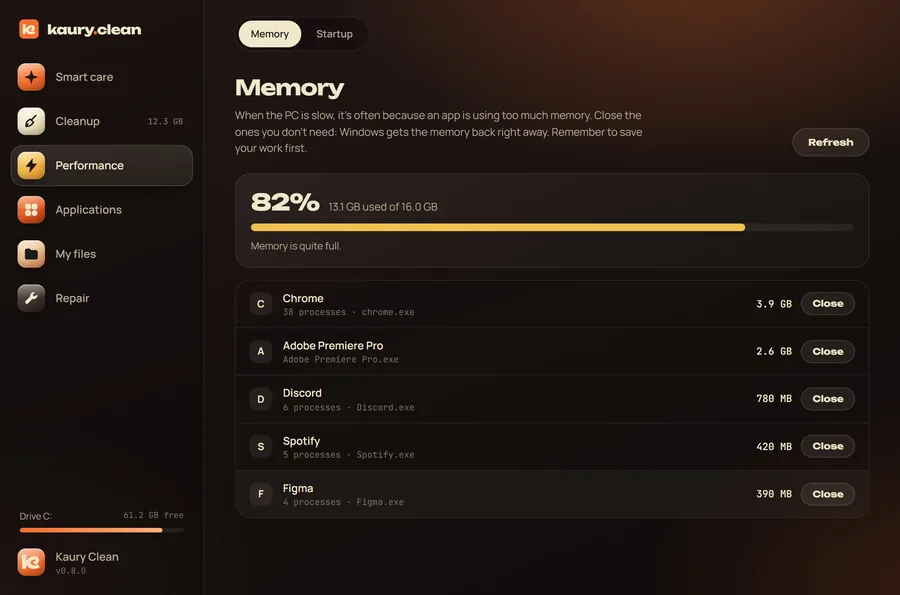
In Kaury Clean, the Performance section lists the apps that launch with Windows: one switch each, disabled but never deleted. The Repair section runs DISM, SFC and a disk check with no command line, and offers to create a restore point. Free, no ads, 1.6 MB.
Download Kaury CleanFAQ
Does disabling a startup app uninstall it?
No. The app stays installed and works normally when you open it. It just no longer launches by itself with Windows.
Do RAM boosters work?
No. Windows already manages memory, and flushing it forces apps to reload everything. Better to spot the apps that really use memory and close them.
More guides: free up disk space · a free CCleaner alternative.