In short
Start with Settings › System › Storage to see what's using space. Then delete temp files and Windows Update leftovers (Disk Cleanup › Clean up system files), uninstall unused apps, find your big files and turn on Storage Sense. Never delete Windows folders by hand.
1. First, see what's taking up space
Before deleting anything, open Settings › System › Storage. Windows breaks down the used space: apps, temporary files, documents, pictures, videos… You'll know right away whether the problem is Windows or your own files.
On Windows 11, Cleanup recommendations already suggests a first list: large files, unused apps, files synced to the cloud.
2. Delete temporary files
Still in Storage, click Temporary files. Windows works out what can go: temp files, thumbnails, error reports, delivery optimization cache…
- Tick the suggested categories.
- Untick “Downloads” if it shows up: it would empty your whole Downloads folder.
- Click Remove files.
Good to know: these files come back as you use your PC. That's normal, and it's why an occasional cleanup is enough. No need to do it every day.
3. Clear Windows Update leftovers
After a big update, Windows keeps copies of the old files, sometimes several gigabytes. To remove them properly:
- Press Windows, type Disk Cleanup and open it.
- Pick drive C:, then click Clean up system files.
- Tick Windows Update Cleanup and, if you won't roll back, Previous Windows installation(s) (the
Windows.oldfolder).
4. Clear app and browser caches
Chrome, Edge, Discord, Spotify, Teams, Steam and Adobe all keep caches that grow with no limit. Each app hides its own setting somewhere. These caches rebuild themselves: clearing them loses no passwords or bookmarks, as long as you clear only the cache, not cookies or sign-in data.
5. Uninstall what you no longer use
Open Settings › Apps › Installed apps and sort by size. Games, creative suites and old trial software are often at the top. Uninstall from this list: Windows then runs each program's official uninstaller.
6. Find your big files and duplicates
What really fills a drive is often our own forgotten files: videos exported twice, ISO images, installers downloaded months ago. In File Explorer, open your user folder, type size:>500MB in the search box to surface files over 500 MB, then go through your Downloads folder.
7. Turn on Storage Sense
In Settings › System › Storage, turn on Storage Sense. Windows will then empty temp files and the Recycle Bin on its own, on a schedule. Check its settings: leave the Downloads option on Never if you keep files there.
What to avoid
- Deleting Windows folders by hand (
WinSxS,System32,Installer): the surest way to break updates. - Registry cleaners: they free almost nothing, and Microsoft doesn't support their use.
- Turning off the page file to save a few GB: Windows needs it when memory is full.
The shortcut: all of this in one click
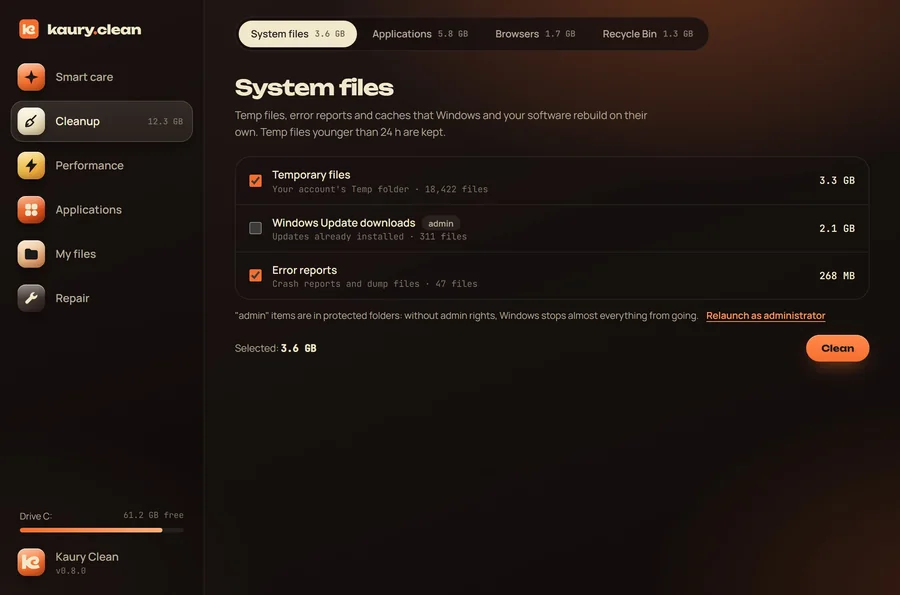
Kaury Clean brings steps 2 to 6 together in one free app: temp files, Windows Update leftovers, caches for nearly twenty apps and browsers, installed apps sorted by size, big files, duplicates and a map of your disk space. You see every item before cleaning, and anything touching your files goes through the Recycle Bin. (Interface in English and French.)
Download Kaury CleanFAQ
Is it safe to delete temp files?
Yes, as long as you leave recent files and files an open app is using. Windows and your software recreate them when needed. Kaury Clean, for instance, keeps temp files younger than 24 hours.
How much free space should I keep?
A good rule: at least 10 to 15% of the drive free, plus a few dozen gigabytes for big Windows updates. Below that, the PC slows down and updates fail.
Can I delete Windows.old?
Yes, if you won't go back to your previous version of Windows. Use Disk Cleanup (step 3) rather than deleting it by hand. Windows removes it by itself after a few days anyway.
More guides: speed up Windows startup · a free CCleaner alternative.